πŸ™Lifebot Β· companion app
Typewriter guide

Turn your to-do list into paper you can finish

Typewriter is a small pixel typewriter that sits on your desktop. Type or paste a checklist and it prints it out on paper. Tick items off one at a time, with a clack. Every tick is saved with the time, so Lifebot can tell you what you actually got done.

Getting started

Open Typewriter

It's installed with Lifebot. Open it from Lifebot's Apps tab (the Open App button under Typewriter), or like any other app: Spotlight or Applications on a Mac, Start β†’ Lifebot on Windows, or your applications menu on Linux. On a Mac, if it asks to access your Documents folder, click Allow.
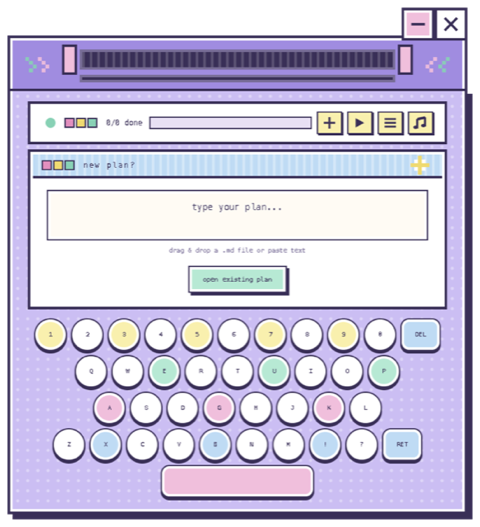
Typewriter's start screen: a β€œnew plan?” box with β€œtype your plan...” and β€œopen existing plan”, above a pixel keyboard

What you see

  • The paper at the top, where your list prints.
  • The status bar, left to right:
    • round dot: design
    • three dots: colors
    • 1/3 done: progress
    • +: new plan
    • β–Έ: saved plans
    • ≑ / ●: list or focus view
    • β™ͺ: sound on or off
  • The new plan? box, where you type.
  • The keyboard. Click its keys, or just use your real keyboard; the matching key lights up.
  • The minus and βœ• buttons at the top right: collapse to a slim strip, or quit.

Like Pixel Pomodoro, it floats above your other windows. Drag it by the typewriter body.

When to use it

Typewriter is for today's plan, not for everything you might ever do. In the morning, type the three to six things you intend to finish, or paste a list from your notes, or ask Lifebot to write one for you. Leave the paper on screen and tick items as you finish them. At the end of the day, pause what you'll continue tomorrow or abandon what you've dropped, with a short note.

Every tick is saved with the time, and so are your pause and abandon notes. That's what lets Lifebot tell you what you actually finished today, what keeps slipping to tomorrow, and what you dropped and why. Pair it with Pixel Pomodoro: pick the next item on the paper, run a focus session on it, and tick it when the timer rings.
Three ways

Make a plan

1. Type it fastest for a few items

  1. Click the type your plan... box and type your first item.
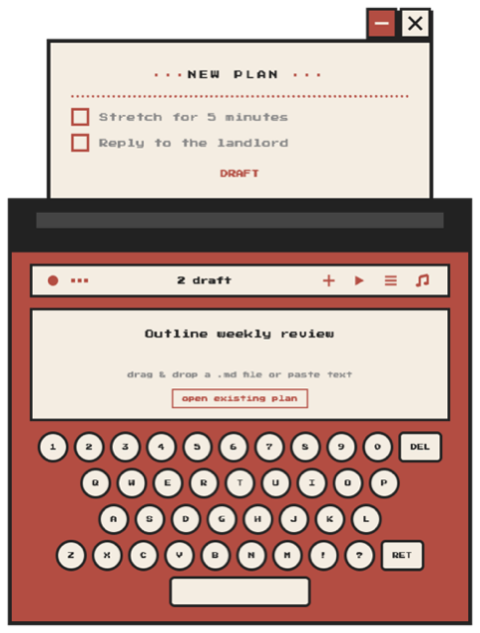
  2. Press Shift + Enter to stage it and type the next one. Staged items show on the paper as a DRAFT. Click a draft item to remove it.
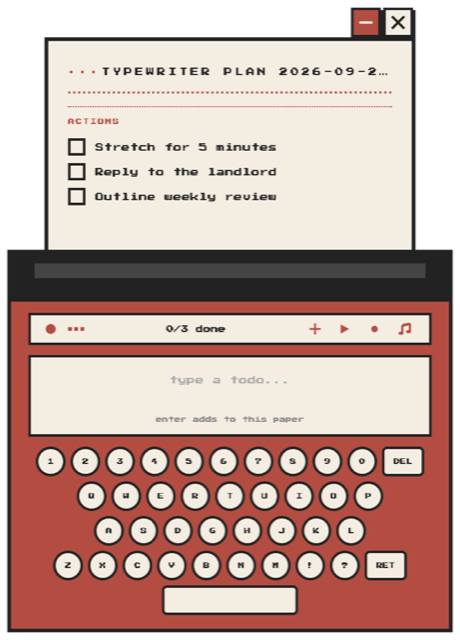
  3. After the last item, press Enter. Typewriter prints the plan.
Three items staged as a draft
Staging items with Shift + Enter
The printed plan with three unchecked items and an add todos box
Printed, with an add todos box ready

A typed plan stays open for more: type another to-do and press Enter to add it to the same paper. Press Esc to close the box.

2. Paste it best for longer lists

Got a list already, in your notes, an email, a Notion page, or one you asked Lifebot or ChatGPT to write? Paste it in and it becomes a plan.

Typewriter turns it into a checklist for you. Whatever the list looked like, bullets, numbers or boxes, each line becomes an item you can tick. If there's a line above the list, that becomes the plan's name. If the list has headings, each heading becomes its own section with its own done! stamp. And if you paste the same list again later, Typewriter opens the plan you already have instead of making a second one.

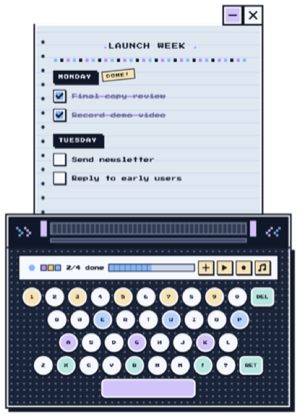
# Launch Week ## Monday - Final copy review - Record demo video ## Tuesday - Send newsletter - Reply to early users

3. Open or drop a file

Click open existing plan to choose a Markdown (.md) checklist, or drag a .md file onto the typewriter. Typewriter saves a copy in its own plans folder and works on the copy; your original file is never changed.

Your saved plans

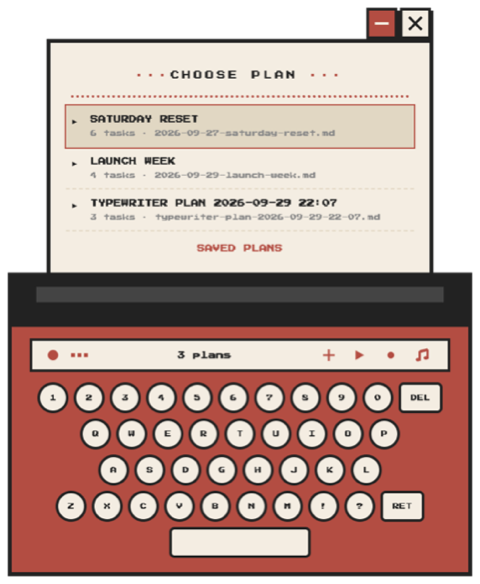
Click β–Έ to see every plan in your plans folder, with how many tasks each has. Use ↑ ↓ and Enter to open one, or Esc to close the list. When you reopen Typewriter, the plan you had open comes back automatically.

choose plan list with Saturday Reset, Launch Week and a quick plan
Choose a saved plan

To start something new while a pasted or opened plan is open, click +. For a plan you typed, finish it or pause it with Ctrl + C and the paper clears.

Getting it done

Work through a plan

There are two views. Switch with the ≑ / ● button in the status bar.

Focus view ●

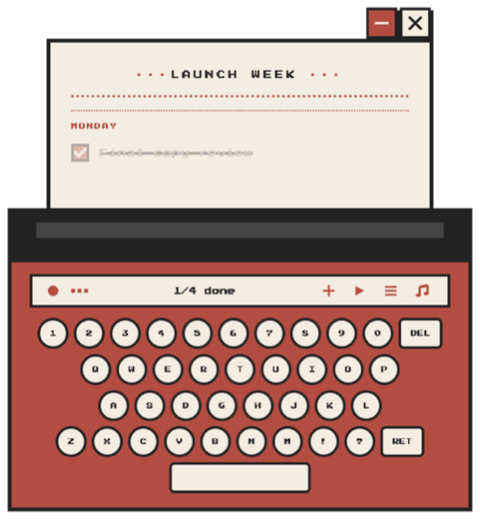
Shows one item at a time, so the rest of the list doesn't distract you. Press Space or Enter (or click it) to tick it. After a moment, the next unticked item prints. Plans you open from a file or from the saved plans list start here.

Focus view: Launch Week, Monday, Final copy review ticked, 1/4 done
Focus view

List view ≑

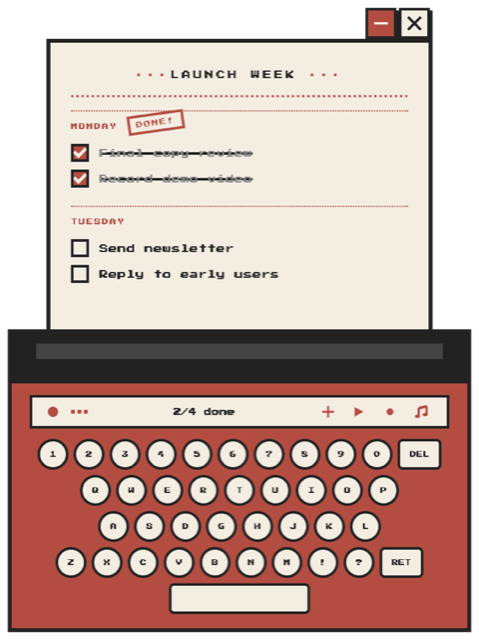
Shows the whole paper. Click any item to tick or untick it. Typed and pasted plans start here. When every item in a section is ticked, it gets a done! stamp.

List view of Launch Week with the first two items ticked
List view

Finishing a plan

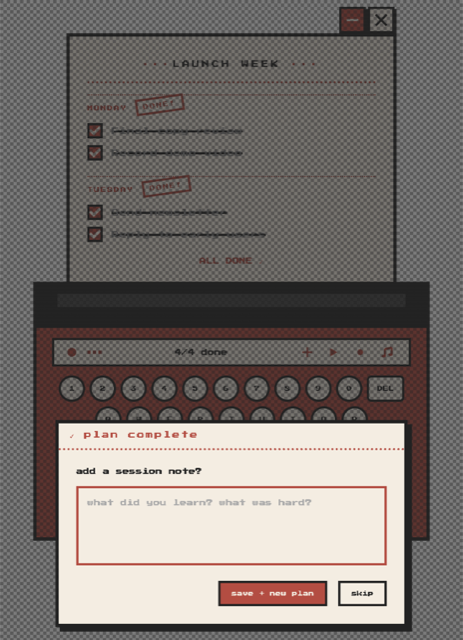
Tick the last item and you get confetti, a fanfare, and a βœ“ plan complete box asking add a session note? Write what you learned or what was hard, then click save + new plan. Or click skip. The paper then says ALL DONE βœ“.

plan complete popup with a session note box, save + new plan and skip
Plan complete

Pausing or abandoning a plan

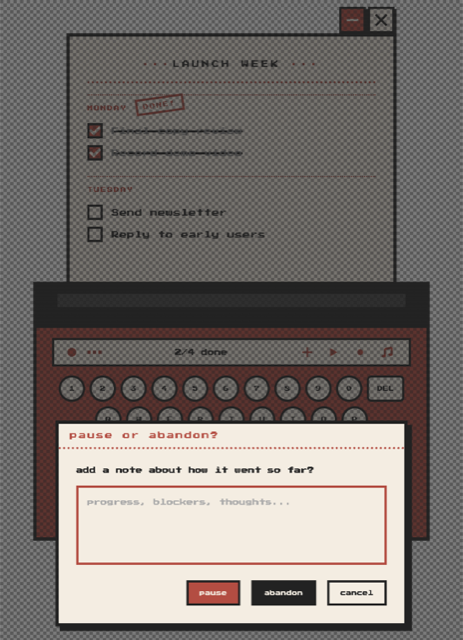
Press Ctrl + C (the Control key, on Mac too) while a plan is open. If you were just typing in the add todos box, click the paper first. Typewriter asks pause or abandon? and offers a note box for progress, blockers or thoughts.

pause or abandon? popup with a note box and pause, abandon, cancel buttons
Pause or abandon
How to use Typewriter
Make it yours

Designs and colors

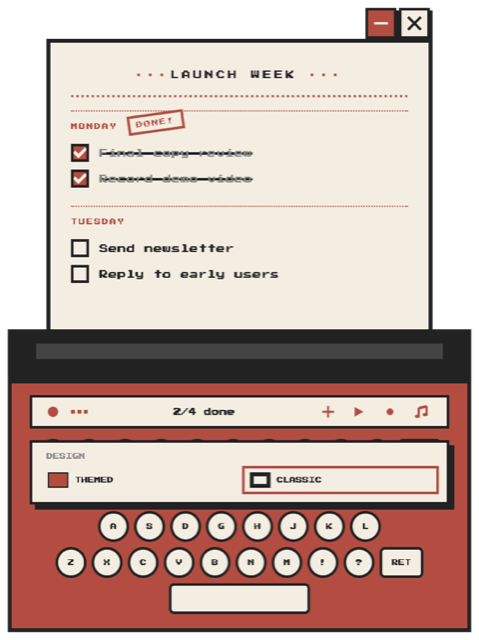
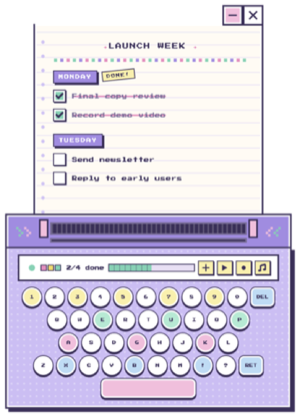
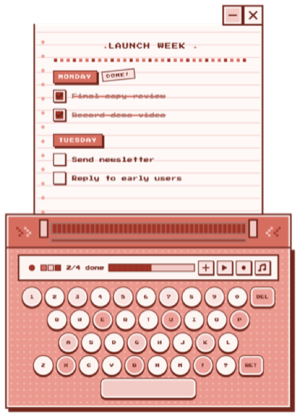
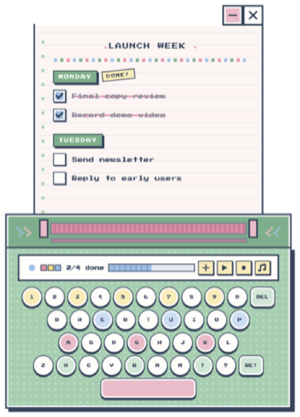
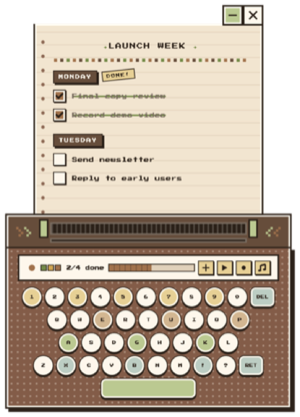
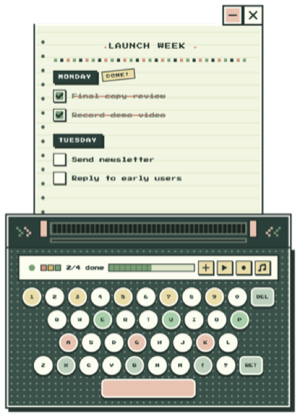
Click the round dot at the left of the status bar to pick a design: classic (the default) or themed. Click the three dots next to it to pick colors. Each design has six color schemes. Your choice is remembered.

Design menu with themed and classic
Design menu

Classic

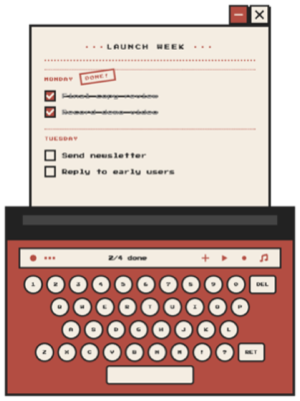
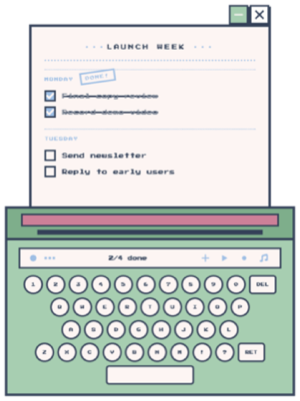
Classic red
red (default)
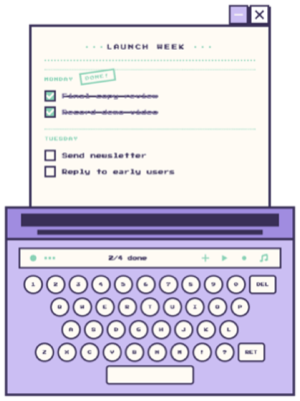
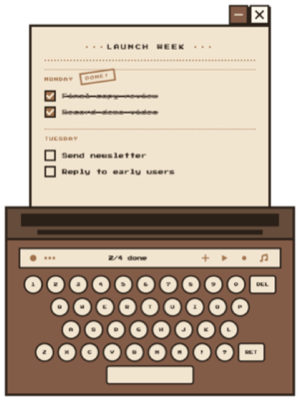
Classic pastel pixel
pastel pixel
Classic anime art
anime art
Classic forest trail
forest trail
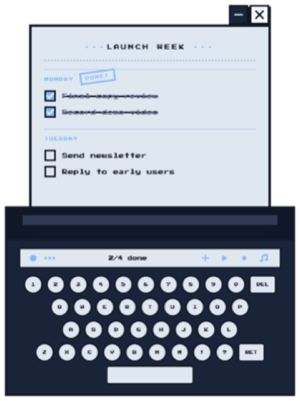
Classic midnight walk
midnight walk
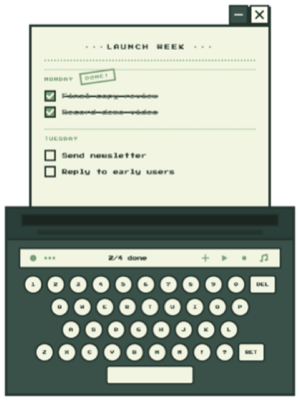
Classic matcha mint
matcha mint

Themed

Themed pastel pixel
pastel pixel
Themed cherry
cherry
Themed anime art
anime art
Themed forest trail
forest trail
Themed midnight walk
midnight walk
Themed matcha mint
matcha mint

Sound and size

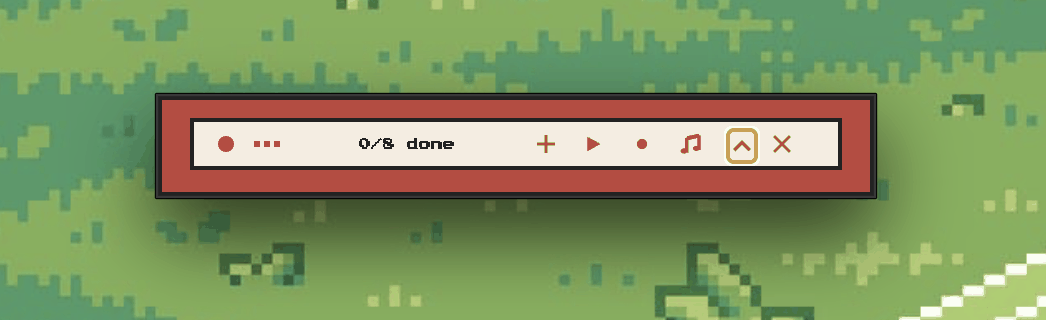
β™ͺ turns the typing and tick sounds off. It's back on the next time you open the app. The minus button at the top right collapses Typewriter to a slim strip that still shows your progress; click it again to expand.

Collapsed Typewriter: the slim status strip with 0/8 done, the + and β™ͺ buttons and the expand arrow
Collapsed to the status strip
Reference

Keyboard shortcuts

KeyWhenWhat it does
EnterTyping in the plan boxPrint a new plan, or add the item to the current typed plan
Shift + EnterTyping, no plan openStage the item as a draft and type the next
Space or EnterFocus viewTick the current item
⌘ / Ctrl + VNot typing in a boxPaste a list as a new plan
Ctrl + CA plan is open, not typing in a boxPause or abandon
↑ ↓ EnterSaved plans listMove and open
EscList, menu or add box openClose it

You can click the picture keyboard too. Its spacebar ticks the current item, and its ret key (Return) prints what you typed, the same as the real keys.

Companion app

How Typewriter works with Lifebot

Each plan is a plain Markdown file in Documents/Lifebot/your profile/Typewriter. Your profile name is shown at the bottom left of the Lifebot window. When you tick an item, Typewriter marks it done and writes down the time. Lifebot reads the folder whenever you ask about your plans, and in your evening summary. To see it happen, do Try it: one plan, one session, one question in the install guide, which has a demo of each step.

# Launch Week ## Monday - [x] Final copy review (done 2026-09-30 09:12) - [x] Record demo video (done 2026-09-30 11:40) ## Tuesday - [ ] Send newsletter - [ ] Reply to early users

Pausing, abandoning and session notes are added to the bottom of the same file, so Lifebot knows what you dropped and why. A small .progress.json file next to each plan keeps track of its status. Nothing in the app deletes plans; to remove one, delete its file from the folder.

Ask Lifebot

What did I tick off today?
Which plans did I pause or abandon this month, and what did my notes say?
Plan my Saturday as a checklist with sections for Home, Admin and Me. Keep each item short.Then copy Lifebot's answer and paste it into Typewriter.

Changing where it saves

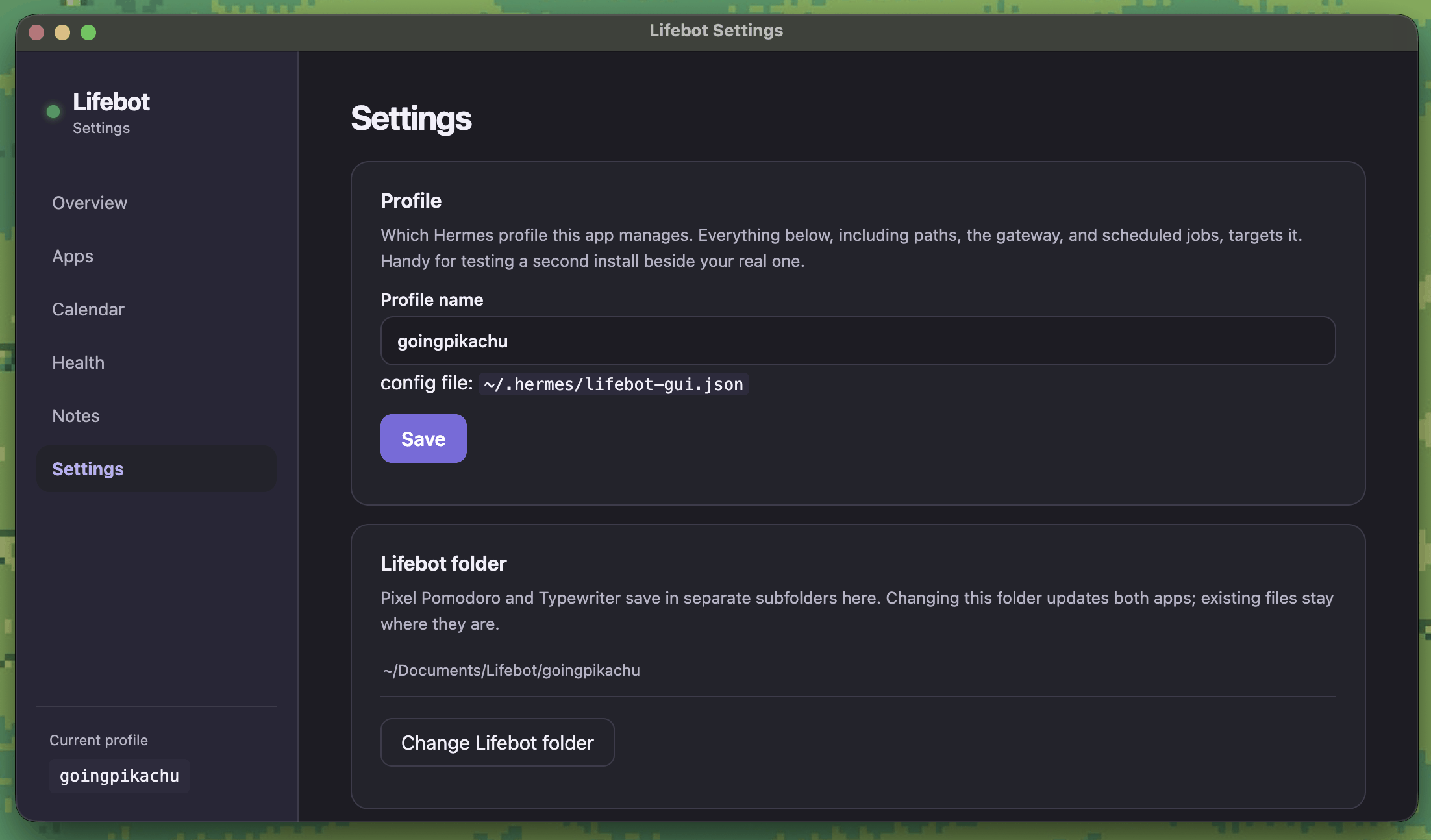
In Lifebot, go to Settings β†’ Lifebot folder β†’ Change Lifebot folder. Typewriter and Pixel Pomodoro move to the new folder together. Existing plans stay where they were.

Lifebot Settings: the Profile name box and the Lifebot folder card with its Change Lifebot folder button
Settings: Lifebot folder
Help

Troubleshooting

Click the one that sounds like your problem.

I pasted a list and nothing happened

  • Click the typewriter picture or the paper first, not the text box, then paste again.
  • Why: pasting into the text box just puts the text in the box. Pasting onto the typewriter turns it into a plan.

It says "couldn't read this plan :("

  • The file has no items Typewriter recognizes. This happens with plans opened from a file.
  • Easiest fix: copy the text and paste it onto the typewriter instead. Paste understands bullets, numbers and other list styles; opening a file only understands lines that start with - [ ].

I clicked + to add an item and it started a new plan instead

  • + adds items only to plans you typed in Typewriter.
  • For a pasted or opened plan, add the item to the original list and paste the whole list again. Typewriter updates the plan you already have.

The letters look different

  • You're offline. Typewriter's pixel font loads from the internet. It uses a plain font until you reconnect, and everything still works.

Lifebot doesn't see what I ticked

  • Open Lifebot's Apps tab. The Typewriter plans card should say updated … ago and show the folder you use.
  • Tick in Typewriter, not in the original file. A plan you opened from somewhere else is copied into Typewriter's folder, and Lifebot reads that copy.