Welcome! Your download is a zip file. This guide shows you how to open it, get past your computer's security warnings, run the installer, open Lifebot for the first time, and try it once so you see what it does. You don't need any technical background.
Before you start
What you'll need
The whole install takes 10 to 20 minutes. Most of that is waiting for downloads, and none of it is difficult.
A supported computer
Mac with Apple silicon (M1 or later), Windows 10 or 11, or 64-bit Linux (Ubuntu, Debian or Fedora).
An internet connection
You'll download Hermes, the free AI engine Lifebot runs on, then Lifebot.
Your computer password
The Mac and Linux installers may ask for it once. Nothing shows as you type; that's normal.
An AI account, later
The setup wizard asks after install: a ChatGPT subscription, Nous Portal, or an API key. A local model works too.
On a Mac you install Hermes first, then Lifebot. Hermes is the free, open-source AI engine that Lifebot runs on. The Lifebot installer doesn't install Hermes for you. Lifebot opens its installer in Terminal: double-click Install Lifebot to start, as shown in step 3. Pressing Return accepts the suggested answer, which is right for most people.
Install Hermes 5 mins
Download Hermes Desktop from hermes-agent.nousresearch.com/desktop. It's free. Open it and let it finish setting up. If Hermes offers to set up a model, you can do it now or skip it; Lifebot asks you again in its own setup.
Unzip the download 1 min
Find lifebot-kit-macos.zip in your Downloads folder and double-click it. A folder named lifebot-kit appears next to it. Open that folder.
Start the installer 2 to 5 mins
Double-click Install Lifebot. Your Mac asks whether to open it. Click Open. A Terminal window opens and the installer starts, as in the demo.
Double-click Install Lifebot, click Open and OK, and the installer starts
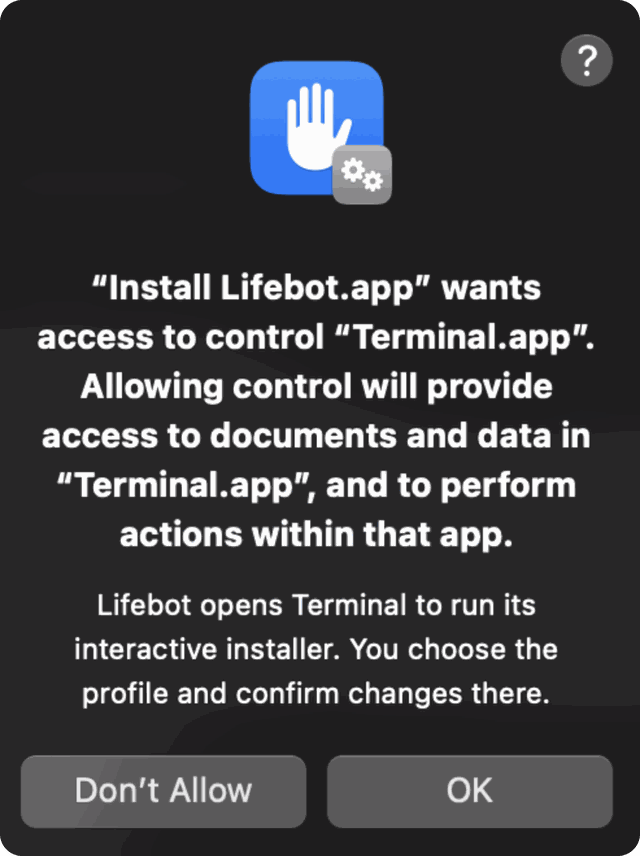
If it asks whether "Install Lifebot.app" wants access to control "Terminal.app", click OK. That's how the installer opens Terminal for you.
Click OK so the installer can open Terminal
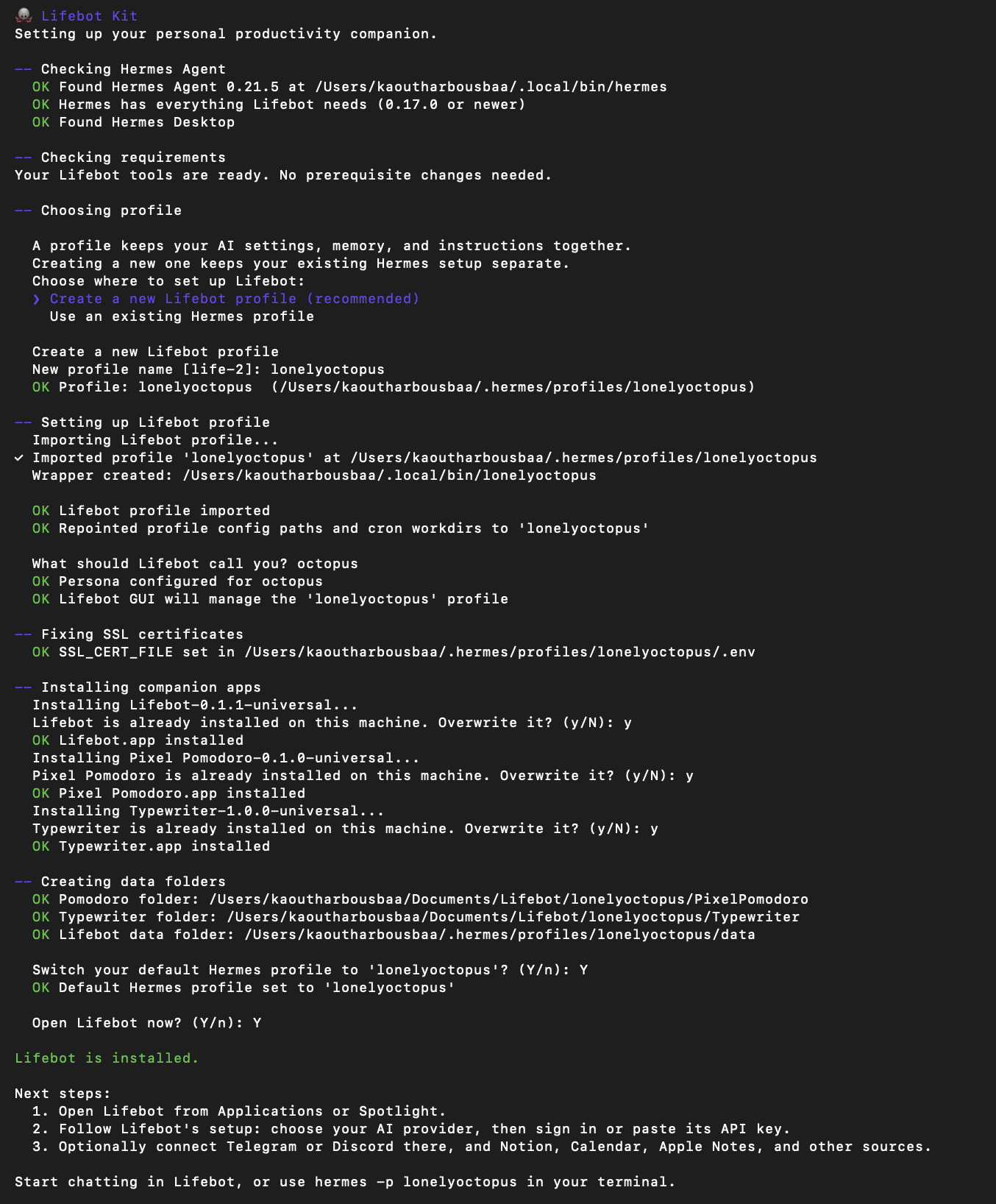
The installer starts with 🐙 Lifebot Kit. Press Return to accept each suggestion, and type y whenever it asks a yes or no question. That's it. The full list of questions is in What the installer asks.
Terminal when the install is done
Note: if "Terminal would like to access files in your Downloads folder" appears, click Allow.
If Terminal did not open 1 min
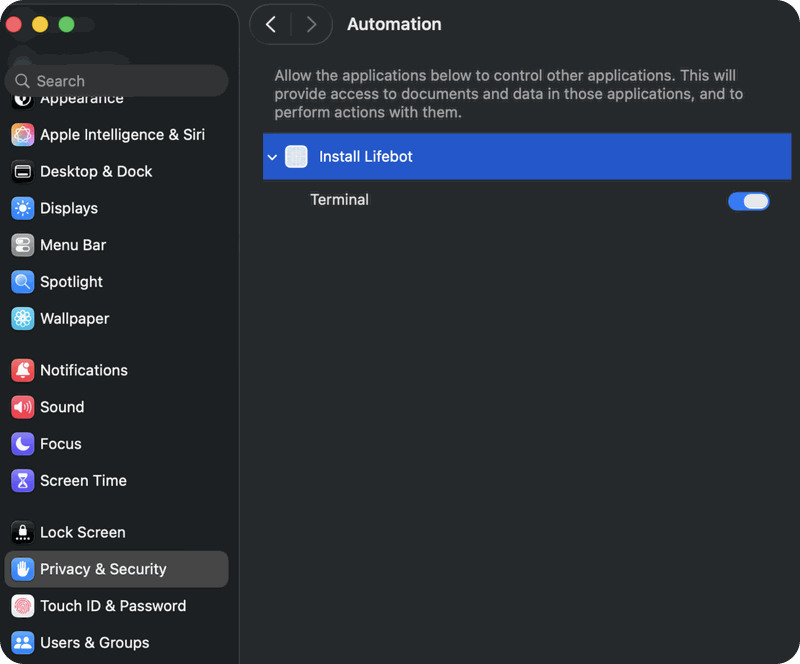
Clicked Don't Allow? Open System Settings → Privacy & Security → Automation, turn on Terminal under Install Lifebot, and double-click the installer again.
Automation: turn on Terminal under Install Lifebot
Does your Mac say it cannot verify the developer, or cannot check it for malicious software? Your download is from an earlier release. The simplest fix is to download the current release again. Or use the kit you have: drag Install Lifebot.command into a Terminal window, and if your Mac still blocks it, open System Settings → Privacy & Security, scroll to Security and click Open Anyway.
Prefer Terminal? From the lifebot-kit folder, run bash support/install.sh.
Set up Lifebot 1 min
At Open Lifebot now? (Y/n), press Return. Lifebot opens with its setup wizard, and Terminal prints Lifebot is installed. You can close the Terminal window.
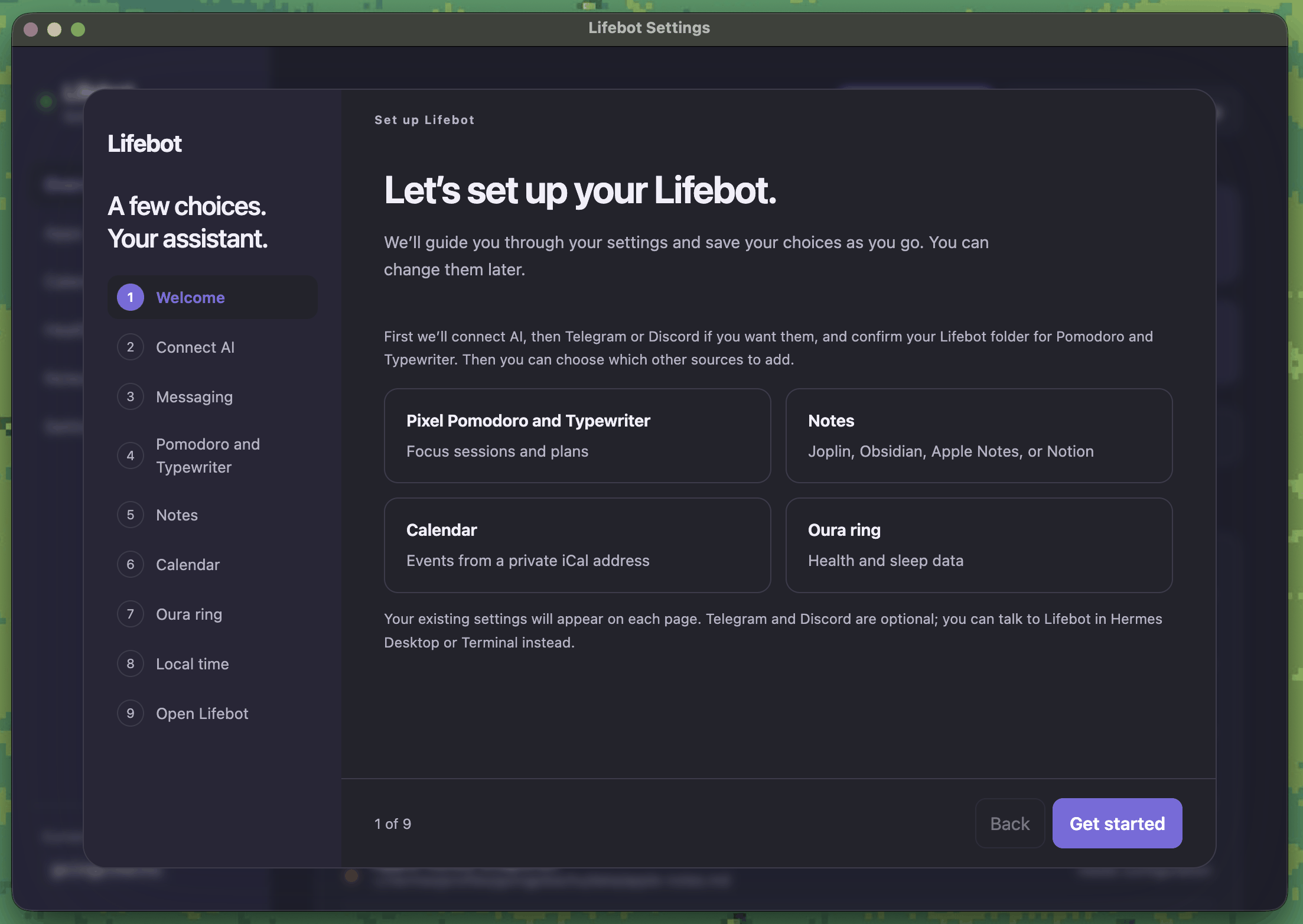
Lifebot's setup wizard, first open
You're finished when Terminal says Lifebot is installed. and the Lifebot window shows Let's set up your Lifebot. The setup wizard walks you through the rest.
On Windows you install Hermes first, then Lifebot. Hermes is the free, open-source AI engine that Lifebot runs on. The Lifebot installer doesn't install Hermes for you.
Install Hermes 5 mins
Download Hermes Desktop from hermes-agent.nousresearch.com/desktop. It's free. Open it and let it finish setting up. If Hermes offers to set up a model, you can do it now or skip it; Lifebot asks you again in its own setup.
Unblock and unzip the download 1 min
Right-click lifebot-kit-windows.zip → Properties. If you see This file came from another computer… at the bottom, tick Unblock and click OK. This one tick prevents most of Windows' warnings in the next step.
Then right-click the zip again → Extract All → Extract. Open the new lifebot-kit folder.
Run the installer 2 to 5 mins
Double-click Install Lifebot.cmd. Or open a terminal window (Start → Terminal), drag the file into it, and press Enter.
The installer asks for a profile name and for your first name. Press Enter to accept each suggestion, and type y whenever it asks a yes or no question. It then installs Lifebot, Pixel Pomodoro and Typewriter under %LOCALAPPDATA%\Programs\Lifebot, adds them to the Start menu, and opens Lifebot.
Follow the setup wizard
Lifebot opens on Let's set up your Lifebot. The setup wizard walks you through the rest. Later, open Lifebot, Pixel Pomodoro or Typewriter from Start → Lifebot.
Lifebot's setup wizard, first open
Smart App Control. Some Windows 11 PCs have Smart App Control turned on. It can block unsigned apps with no "Run anyway" button. If that happens, the kit can't run on that PC until a newer release. Windows lets you turn Smart App Control off in Windows Security → App & browser control, but on some versions of Windows it can't be switched back on without reinstalling Windows, so think it over before you do.
You're finished when the console says Lifebot is installed. and Lifebot shows its welcome screen.
Works on 64-bit Ubuntu, Debian and Fedora. Install Hermes first, then Lifebot. The Lifebot installer doesn't install Hermes for you. On other distributions, also install Python 3 and the libraries the apps need, if they're missing.
Right-click lifebot-kit-linux.zip and choose Extract Here. Or, in a terminal in the same folder:
unzip lifebot-kit-linux.zip
Open a terminal in the folder
Open the lifebot-kit folder, right-click an empty spot, and choose Open in Terminal.
Start the installer
bash install.sh
Starting it with bash works even if unzipping didn't keep the file's permission to run.
Answer a few questions
Press Enter to accept each suggestion, and type y whenever it asks a yes or no question. If you're asked for a password, type your computer password (it stays invisible) and press Enter. Lifebot opens at the end on Let's set up your Lifebot. The setup wizard walks you through the rest.
Pressing Enter (or Return) accepts the answer in brackets. Here's every question you might see on a Mac or Linux, in order, and what to do. Windows asks only the two questions listed in its steps above, plus Open the Hermes guide in your browser now? [Y/n] if Hermes isn't installed yet.
You'll see
What to do
Open the Hermes website now? (Y/n)
Only shown if Hermes isn't installed. Press Enter to open the Hermes site, install Hermes, then run the installer again.
Prepare these and continue? (Y/n)
Linux only. Press Enter. It installs only the missing libraries the apps need, and asks for your password.
Choose where to set up Lifebot:
Only shown if you already use Hermes. Keep Create a new Lifebot profile (recommended) selected and press Enter. It keeps your existing Hermes setup separate.
New profile name [life]
Press Enter.
Continue with this profile? (y/N)
Only if you chose an existing profile. Type y only if Lifebot was installed there before.
Keep this profile and add only missing Lifebot files? (Y/n)
Shown when you reinstall onto a Lifebot profile. Press Enter. Your settings, persona, memories and jobs are kept, and a backup is made first.
What should Lifebot call you?
Type your first name and press Enter.
… is already installed on this machine. Overwrite it? (y/N)
Press Enter to keep the app you have, or type y to replace it with the newer one from this kit.
Switch your default Hermes profile to 'life'? (Y/n)
Press Enter, unless you use Hermes for other things and want it to stay on your old profile.
Open Lifebot now? (Y/n)
Press Enter. Lifebot opens and its setup wizard walks you through the rest.
Good to know
It's safe to run again. If setup stops partway, start it again the same way. It keeps what's already done and never overwrites your own files.
Keep the folder together. The installer needs everything in lifebot-kit, including the support folder.
Leave the window open until you see Lifebot is installed. Closing it stops setup, but you can start again.
What's a profile? A folder that keeps Lifebot's AI settings, memory and instructions together, at ~/.hermes/profiles/life (Windows: %LOCALAPPDATA%\hermes\profiles\life).
Every day
Open Lifebot
The installer opens Lifebot for you the first time. After that:
Computer
How to open Lifebot, Pixel Pomodoro or Typewriter
Mac
Press ⌘ Command + Space, type Lifebot, press Return. Or open it from the Applications folder. Tip: right-click its Dock icon → Options → Keep in Dock.
Windows
Start menu → Lifebot folder → Lifebot, Pixel Pomodoro or Typewriter.
Linux
Your applications menu, or ~/Applications/Lifebot.AppImage.
From Lifebot
The Apps tab has an Open App button under Pixel Pomodoro and another under Typewriter.
Closing the window doesn't stop Lifebot. Its background service (the "gateway") keeps running, so your evening summary and phone messages still work. You only need the window open to change settings.
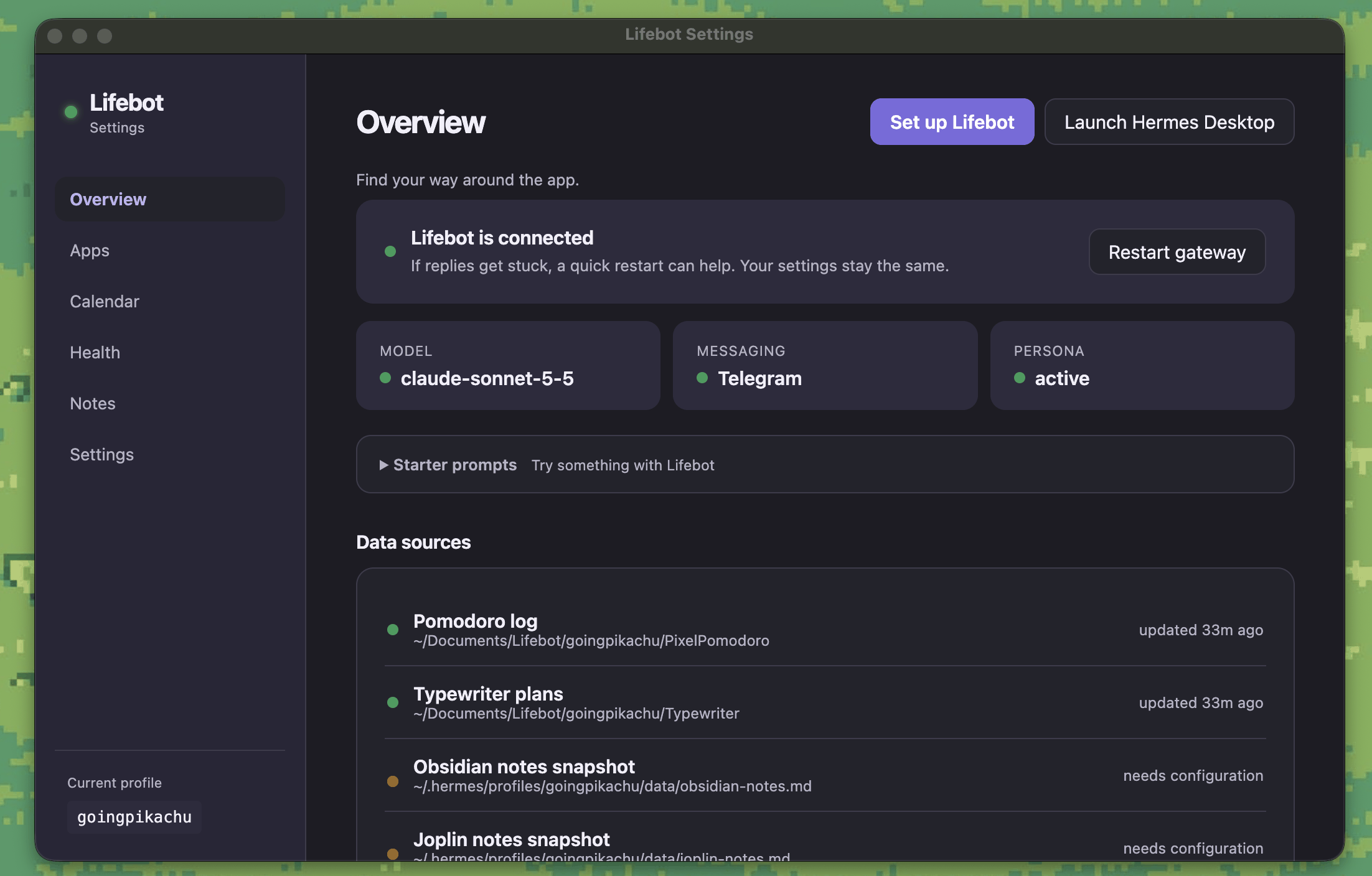
The top card on Overview should say Lifebot is connected. If it says Couldn't connect just now, click Start gateway. If that doesn't help, see When something isn't working.
Overview: Lifebot is connected
Last step · 10 mins
Try it: one plan, one session, one question
Do this once, right after the setup wizard, while Overview says Lifebot is connected. You'll make a tiny bit of real data with the two companion apps, then ask Lifebot about it. Ten minutes, and you'll know exactly what Lifebot is for.
Make a short checklist in Typewriter 3 mins
In Lifebot, open the Apps tab and click Open App under Typewriter. Type three small things you'll really do today. Press Shift + Enter after the first two, and Enter after the last to print the list.
Do one of them now, then click it to tick it off.
Make a short checklist in Typewriter
Log one Pomodoro session 3 mins
Back in the Apps tab, click Open App under Pixel Pomodoro. For this test, set the minutes to 1, type a task like read the Lifebot guide, and press Enter. When it beeps, press Enter, type a short note, and press Enter again to LOG.
Then start a second session and give up on it on purpose: press Ctrl + C after a few seconds (the Control key, even on a Mac). The title says ABANDONED. Add a note like testing and press Enter. Lifebot treats abandoned sessions as useful information, not failures.
Log one Pomodoro session
Ask Lifebot about it 3 mins
Lifebot talks to you the way ChatGPT does, but about your own day. If you connected Telegram or Discord in the wizard, message your bot. If not, click Launch Hermes Desktop on Overview and open a chat on your Lifebot profile. Ask:
What did I complete today, how long did I focus, and did I abandon any sessions?
Ask Lifebot about your completed tasks and focus sessions
A good answer names the Typewriter item you ticked, the one-minute session and its note, and the abandoned one with how long it ran. It also says which sources it read. Then try:
What's still open on my Typewriter list?
Give me my daily summary for today using all my connected sources.
Ask Lifebot for a daily summary
You're installed when Lifebot correctly tells you what you ticked and what you logged. That's the whole loop working: your apps record, Lifebot reads, you ask. Tonight at 9:25 pm your first Evening summary arrives on Telegram or Discord, if you connected one and your computer is awake.
If the answer is wrong or Lifebot says it has no data, see When something isn't working. For how to use the apps on a normal day, and how to make Lifebot yours, continue to Use Lifebot.
Optional
Let a coding agent install it for you
If you'd rather not run the installer yourself, a coding agent desktop app such as Claude Code can do it for you: it reads the kit, runs the installer, and answers its questions. This works on Mac, Windows and Linux. It's completely optional, and it does exactly the same thing as the steps above.
Install Hermes first
Download Hermes Desktop for Mac, Windows or Linux and let it finish setting up. The Lifebot installer doesn't install Hermes for you, and neither will the agent unless you ask it to.
Download a coding agent app
Download and open a coding agent desktop app, for example Claude Code. Sign in if it asks you to.
Unzip the Lifebot download
Unzip lifebot-kit-macos.zip, lifebot-kit-windows.zip or lifebot-kit-linux.zip as described in step 2 of your computer's section, so you have a lifebot-kit folder. Keep the folder together, including support.
Create a new session in the lifebot-kit folder
In the coding agent app, create a new session. When it asks which folder to work in, choose the unzipped lifebot-kit folder. This gives the agent access to the installer and the support folder, and nothing else.
Ask it to install Lifebot
In the chat, type:
Install Lifebot for me.
The agent runs the installer and comes back to you whenever it needs a decision, such as your first name or your computer password. When it says Lifebot is installed., Lifebot opens on Let's set up your Lifebot. The setup wizard walks you through the rest.
Install Lifebot using a coding agent
Windows and Linux: the same five steps apply. On Windows the agent runs Install Lifebot.cmd; on Linux it runs install.sh.